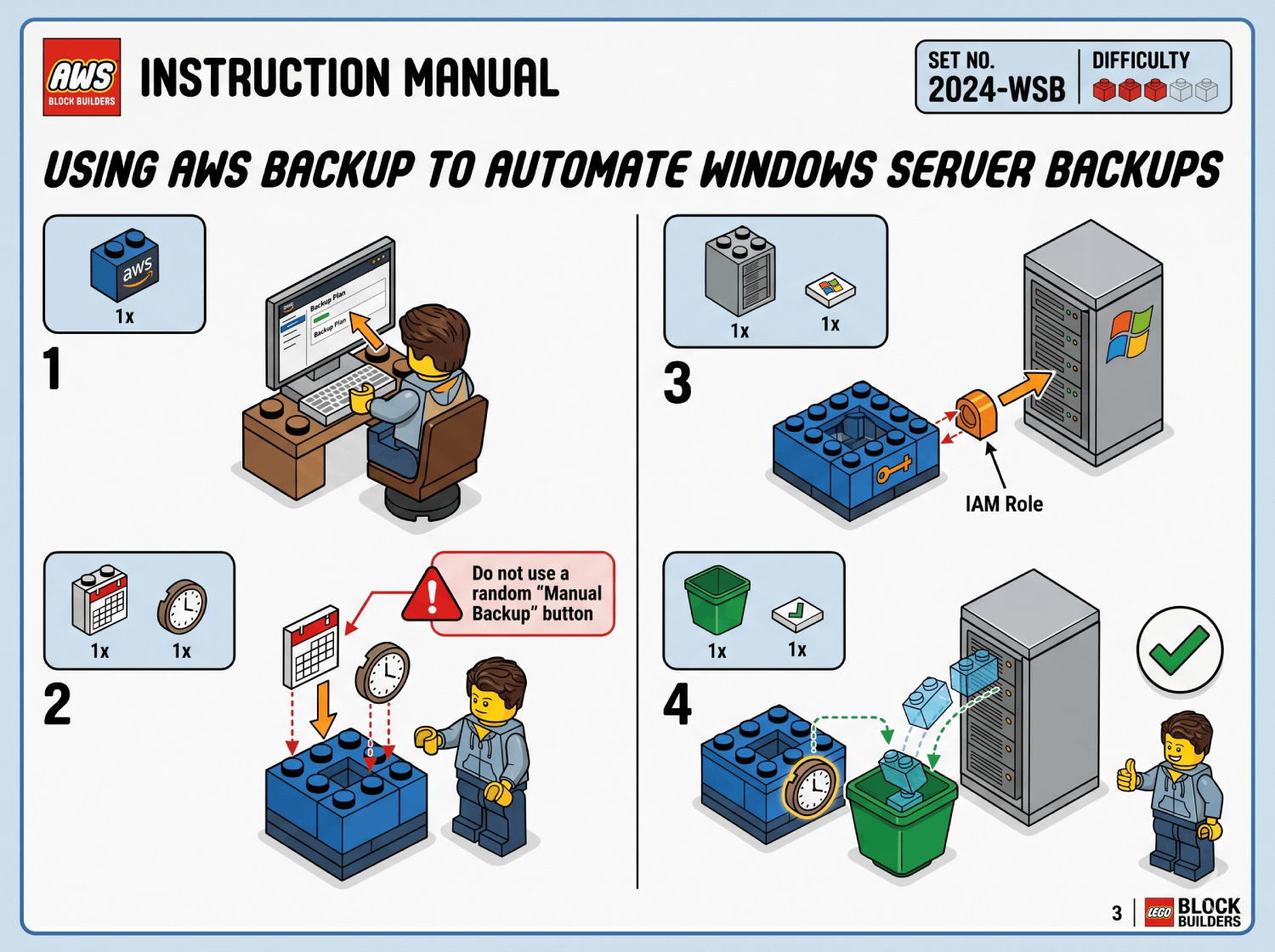
When I first started working professionally in the computer industry my boss told me something that I will never forget…
I don't care what you do or how you do it as long as you have backups working!!!
While you don’t want to take this TOO literally the core concept stands. Things can go really bad sometimes. But, as long as you have a good backup solution in place you will most likely be able to keep your job.
Backup Lingo
When it comes to a backup solution there are many ways to achieve your goal. Today we are going to focus on utilizing the power of the AWS Backup service. But, before we do that, let’s take a moment to go over some basic backup terms and concepts that apply broadly across many of these solutions. If you are a certified Backup Guru® feel free to skip this section!
On-Premises Backups
On-Premises Backups are exactly what they sound like. These are backups that you keep locally onsite at your home or work. This is typically the “first level” when it comes to a backup strategy. Some of the things to consider with an On-Premises solution are below…
| PROS | CONS |
|---|---|
| Complete control over your data | Higher upfront costs |
| Faster data access and recovery | Harder to scale up capacity |
| Reduced exposure to external threats | Risk of data loss from local disasters |
| Independence from internet connectivity | Additional maintenance and support requirements |
Off-Site Backups
Off-Site Backups are when you backup your data to a separate physical location. Did the intern accidentally catch the entire server closet on fire last Friday? No worries! You have Off-Site Backups!
| PROS | CONS |
|---|---|
| Protects against onsite disasters | Requires reliable internet |
| Accessible from anywhere | Possible data access delays |
| Scalable storage | Potentially higher costs |
| Regulatory Compliance | Data restoration can be slow |
Backup Types
| Full Backups | Incremental Backups | Differential Backups |
|---|---|---|
| A complete snapshot of the entire system. This will typically take the longest and use the most storage space. | A complete snapshot of the entire system. This will typically take the longest and use the most storage space. | A complete snapshot of the entire system. This will typically take the longest and use the most storage space. |
3-2-1 Backup Strategy
A common strategy that is employed for backups is known as the 3-2-1 Strategy. It states the below…
- THREE different copies of your data
- On TWO different forms of media
- ONE copy needs to be off-site
This rule has been around for a long time. A modern implementation using AWS might look like…
| Copy A | Copy B | Copy C |
|---|---|---|
| AWS Backup to a vault in US-EAST-1 | Replicate Copy A backups to US-WEST-2 | Copy of data into Glacier Deep Archive in a separate and dedicated Archive account |
The AWS Backup Service
AWS Backup is a fully managed service that can centralize most (if not all) of your backup needs across your environment. Let’s do a quick list of some of the more well known resource types that it can take care of…
- Amazon EC2 Instances
- Amazon EBS Volumes
- Amazon S3 Buckets and Objects
- Amazon RDS Databse Instances
- On Premises VMWare Virtual Machines
All The Pieces
Let’s take a bit of time now to look at all of the pieces that come together to encompass a backup solution using AWS Backup…
Backup Vault
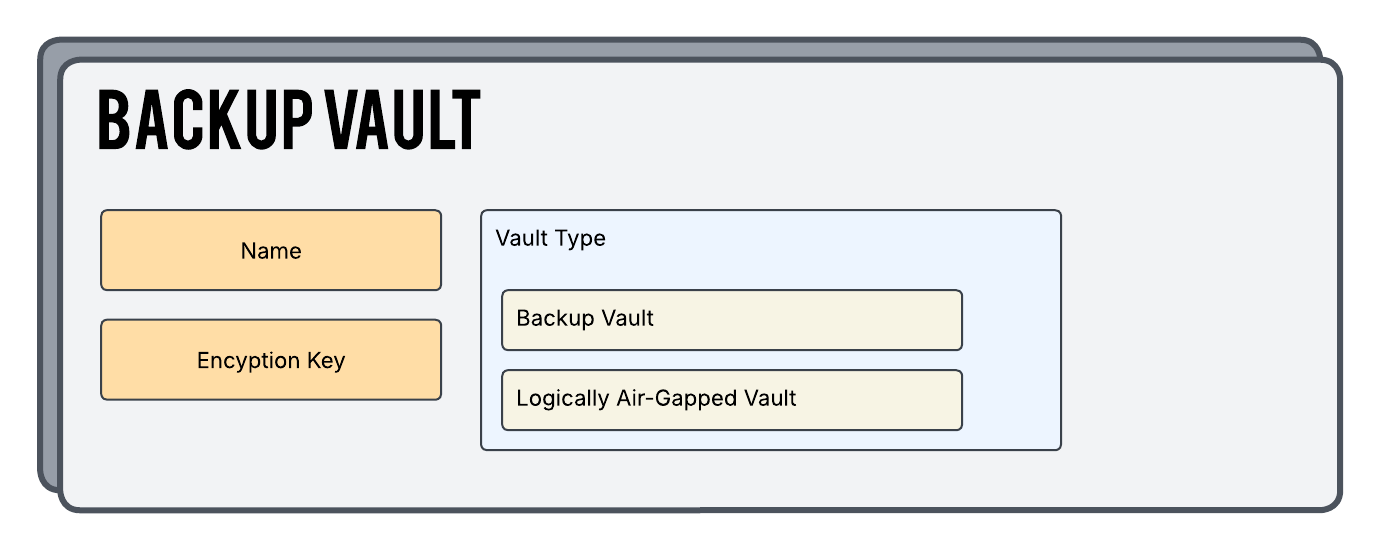
An AWS Backup Vault is a repository where all of your completed backups will live. A single Backup Vault can house backups from multiple resource types at the same time. Encryption at rest is REQUIRED to be used here and you must specify a key to be used when it is created. Vaults support Access Control via IAM so you can decide who or what has access to the contents.
Backup Plan
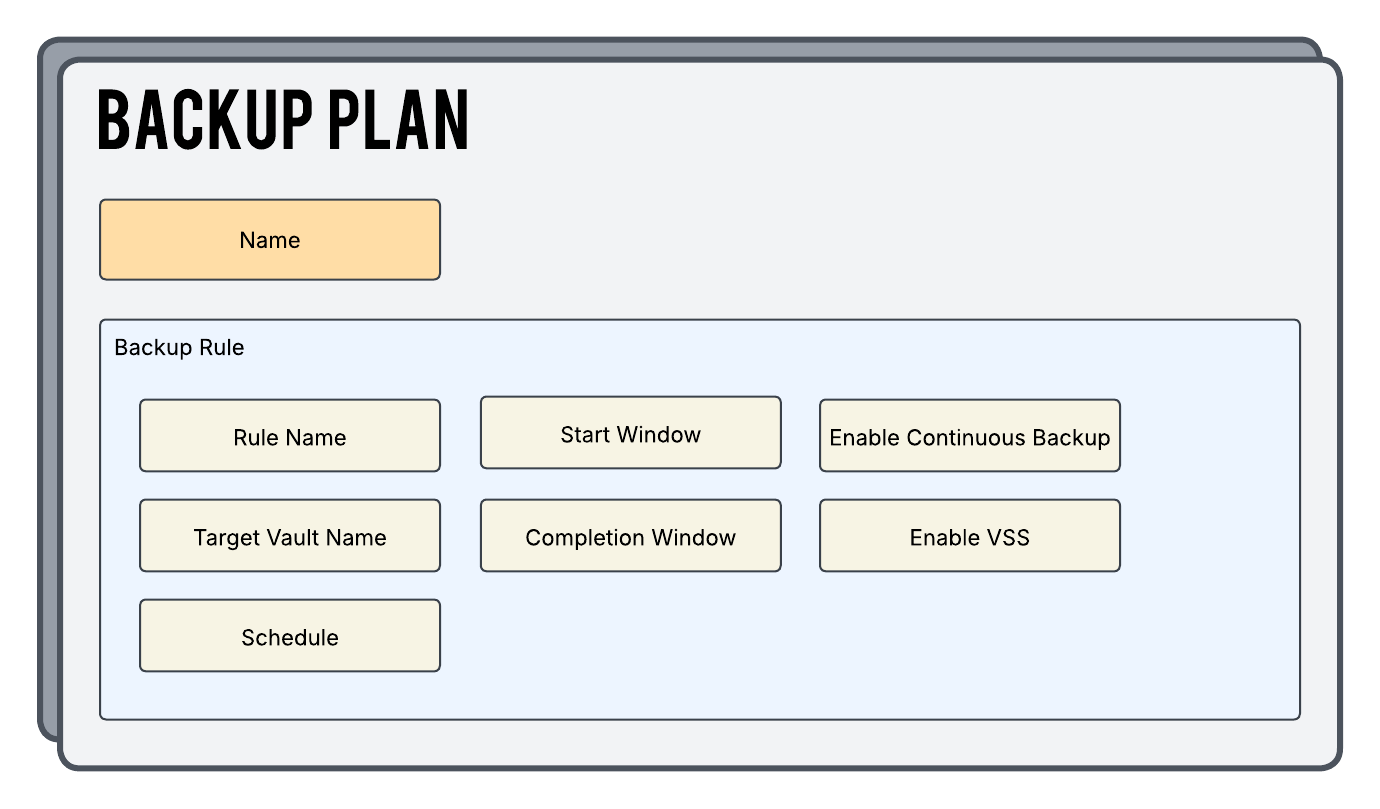
An AWS Backup Plan holds one or more Backup Rules. Each rule defines things such as which Backup Vault to use, the schedule for the backup, and more.
Backup Selection
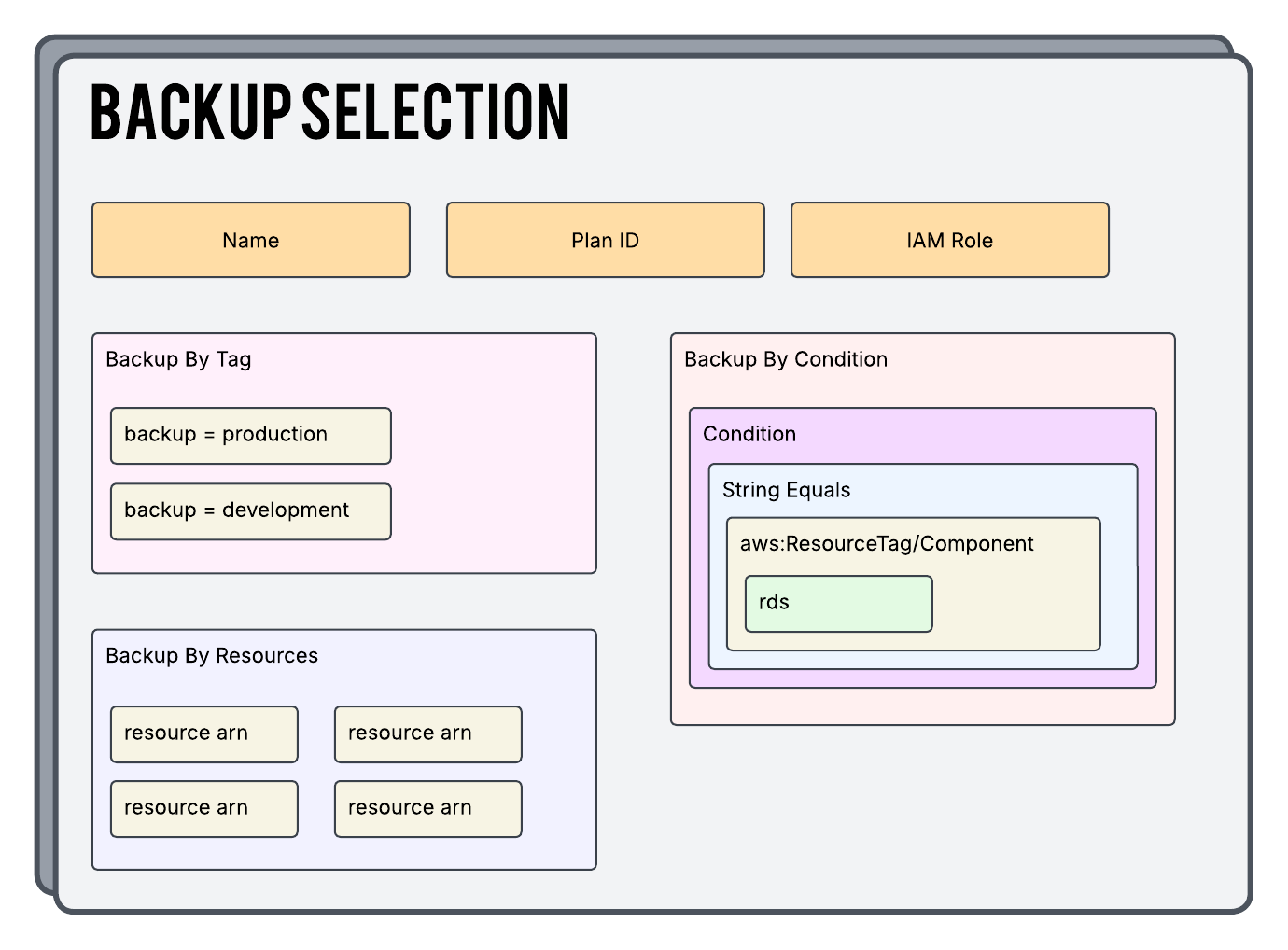
A Backup Selection is the glue that links the Backup Plan, IAM Role (next section), and the actual resources you want to back up. Note that you have multiple options in how you want to target your resources.
IAM Roles And Policies
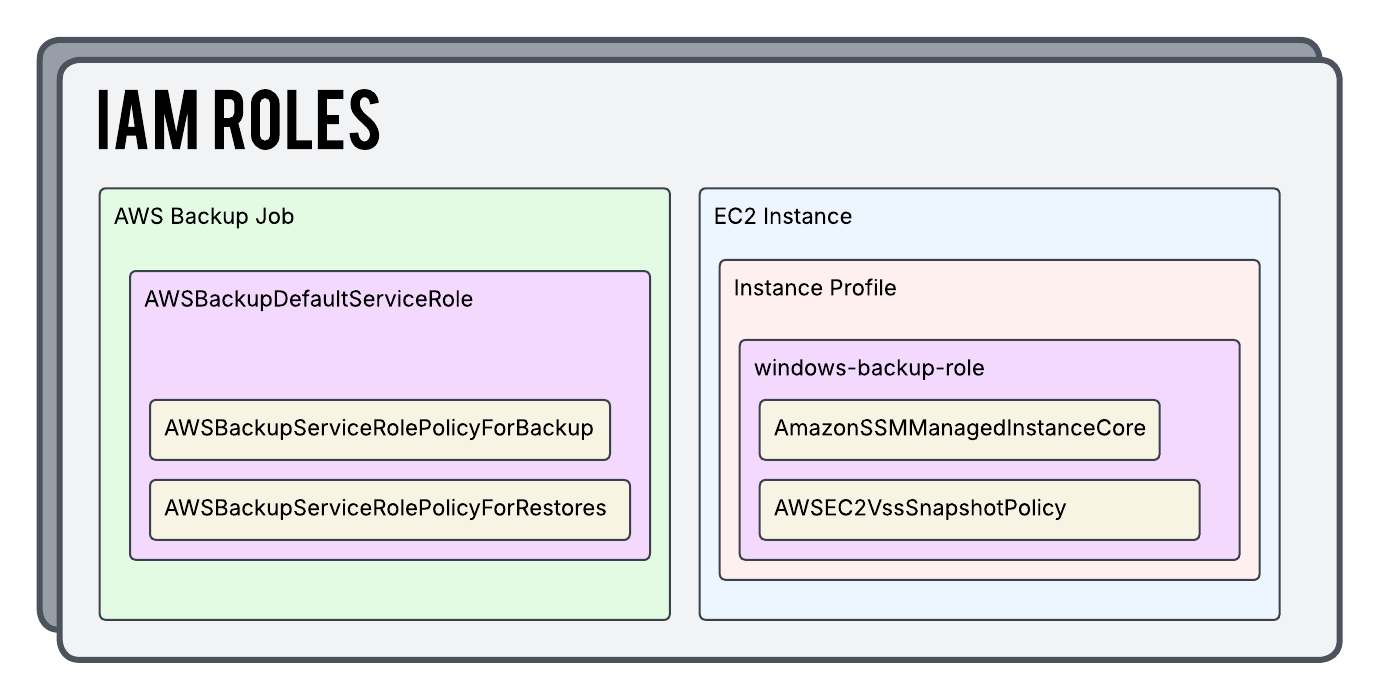
In order for all of this to work together, we will need the appropriate permissions assigned to our resources through IAM Roles. If these permissions are not properly assigned (using AWS vernacular we are “assuming the role”) the backups will fail. We have the power to manually build out roles (and the policies that live inside of them) to attach to our resources, and this is typically best practice when it comes to following the Principle of Least Privilege. The other option you have is to use the pre-built AWS Managed Roles and Policies that already exist. Since this is an AWS Backup tutorial and not an IAM tutorial we will be using the second option here to keep things simple.
Here’s what it looks like…
Put It All Together
Now that we’ve looked at concepts and also the individual pieces an AWS Backup configuration let’s run through the order of operations of the process…
- The AWS Backup Plan will start the job based on the cron schedule you defined in it’s configuration.
- If VSS backups are enabled (they are in our examples), the AWS Backup service sends an SSM Run Command (AWSEC2-CreateVssSnapshot) to the instance to coordinate the VSS process.
- The SSM command triggers the AWS VSS agent on the instance to freeze all I/O operations, flush all caches, generate a VSS snapshot.
- Once the EBS snapshots are initiated the applications and file system on the instance are instructed to resume normal I/O operations.
- AWS Backup marks the backup job as completed and stores metadata around the operation in the AWS Backup Vault
- Retention and lifecycle rules are applied as configured
Now With Terraform
Now let’s see how this looks with Terraform using an Infrastructure As Code approach. I have the files below with a high level summary of each. You can also clone this from my Github Repo.
providers.tf
We are going to initialize our AWS provider as well as populate our secret key and id so that it knows how to authenticate back to the AWS API.
provider "aws" {
  region  = var.aws_region
  access_key = "ASDFASDFASDFASDFASDFASDF"
  secret_key = "ASDFASDFASDFASDFASDFASDF"
}
terraform.tf
This is where we are going to define some high level configuration around how we want Terraform as a whole to operate.
terraform {
  required_version = ">= 1.12.0"

  required_providers {
    aws = {
      source  = "hashicorp/aws"
      version = ">= 5.0"
    }
  }
}
backup_vault.tf
Here is where we are creating our backup vault. At it’s very core it’s a pretty simple configuration. It just needs a name and you need to point it to a KMS key which will be used to encrypt the contents at rest.
resource "aws_backup_vault" "backup_vault" {
  name        = "backup-vault-${var.aws_region}"
  kms_key_arn = data.aws_kms_key.backup_key.arn
}
backup_plans.tf
Probably the meatiest of all the configuration will live here inside of your backup plans. Inside of a Backup Plan you assign it a name, create a rule (or more than one if you like), and can also specify other settings. Notice in our Windows plan we are enabling VSS backups.
# Backup Entire Windows Server All Disks Weekly VSS Enabled
resource "aws_backup_plan" "windows_weekly_ec2_vss" {
  name = "windows-weekly-ec2-vss-${var.aws_region}"

  rule {
    rule_name                = "windows-weekly-ec2-vss-${var.aws_region}"
    target_vault_name        = aws_backup_vault.backup_vault.name
    schedule                 = "cron(0 18 ? * SUN *)"
    completion_window        = 1440
    enable_continuous_backup = false
    recovery_point_tags      = {}
    start_window             = 60

    lifecycle {
      delete_after = 30
    }
  }

  advanced_backup_setting {
    backup_options = {
      WindowsVSS = "enabled"
    }

    resource_type = "EC2"
  }
}

# Backup Single EBS Volume Weekly
resource "aws_backup_plan" "weekly_ebs" {
  name = "weekly-ebs-${var.aws_region}"

  rule {
    rule_name                = "weekly-ebs-${var.aws_region}"
    target_vault_name        = aws_backup_vault.backup_vault.name
    schedule                 = "cron(0 18 ? * SUN *)"
    completion_window        = 1440
    enable_continuous_backup = false
    recovery_point_tags      = {}
    start_window             = 60

    lifecycle {
      delete_after = 30
    }
  }
}
backup_selections.tf
There are a lot of ways to tell your Backup Plans which resources to backup. You can target them by arn, resource type, tags, and more. Below we are telling our selection to use tags (that we assign to our resources) and linking each to a Backup Plan.
# Create Weekly EC2 Backup Selection And Link It To A Tag
resource "aws_backup_selection" "windows_weekly_ec2_vss" {
  iam_role_arn = aws_iam_role.backup_restore.arn
  name         = "windows-weekly-ec2-vss-${var.aws_region}"
  plan_id      = aws_backup_plan.windows_weekly_ec2_vss.id

  selection_tag {
    type  = "STRINGEQUALS"
    key   = "alk:backup"
    value = "windows-weekly-ec2-vss"
  }
}

# Create Weekly EBS Backup Selection And Link It To A Tag
resource "aws_backup_selection" "weekly_ebs" {
  iam_role_arn = aws_iam_role.backup_restore.arn
  name         = "weekly-ebs-${var.aws_region}"
  plan_id      = aws_backup_plan.weekly_ebs.id

  selection_tag {
    type  = "STRINGEQUALS"
    key   = "alk:backup"
    value = "weekly-ebs"
  }
}
data.tf
Our plan here is to utilize a few of the resources provided and managed directly by AWS. In order for our code to see them we need to look them up via the below data sources.
data "aws_kms_key" "backup_key" {
  key_id = "alias/aws/backup"
}

data "aws_iam_policy" "backup_backup" {
  name = "AWSBackupServiceRolePolicyForBackup"
}

data "aws_iam_policy" "backup_restore" {
  name = "AWSBackupServiceRolePolicyForRestores"
}
iam.tf
Here we are creating our IAM role that will provide all of the needed permissions for the AWS Backup service to do it’s job. Notice we are referencing the data sources that we created above.
# Allow The AWS Backup Service To Use This Role
data "aws_iam_policy_document" "assume_role" {
  statement {
    effect = "Allow"

    principals {
      type        = "Service"
      identifiers = ["backup.amazonaws.com"]
    }

    actions = ["sts:AssumeRole"]
  }
}

# Build The Role And Link The Assume Role Policy To It
resource "aws_iam_role" "backup_restore" {
  name               = "backup-restore-role"
  assume_role_policy = data.aws_iam_policy_document.assume_role.json

  tags = {
    Name = "backup-restore-role"
  }
}

# Attach The Necessary AWS Managed Policies To This Role So It Can Do It's Job
resource "aws_iam_role_policy_attachments_exclusive" "policy_attachments" {
  role_name = aws_iam_role.backup_restore.name
  policy_arns = [
    data.aws_iam_policy.backup_backup.arn,
    data.aws_iam_policy.backup_restore.arn
  ]
}
variables.tf
Since the AWS Backup service is a Regional service we are going to go ahead and create a variable to hold whatever region we are building this inside of. Notice we have also used interpolation in our resource names to automatically append this region to the end of the name.
variable "aws_region" {
  description = "AWS region identifier for created resources."
  type        = string
}
terraform.tfvars
The aws_region variable was created above and here we are assigning it a value.
aws_region = "us-east-1"
EC2 Instances Have Needs Too!!!
So you just finished setting up all your shiny new backup infrastructure! Your mother and I are very proud of you. But listen…we have to have a little talk. We feel you’re old enough to know that EC2 Instances have needs too. So what is required on the EC2 side for a backup to be successful? Before we get into specifics let’s take a QUICK detour and talk about VSS.
WTF Is VSS?
Windows servers can utilize a feature called Volume Shadow Copy Service (VSS). VSS is really handy when you start looking at backup up specific server types. Think about a high performance SQL server that might handle a giant database for a popular website with 5 million users. This server consistently would be processing multiple I/O operations 24 hours a day, 7 days a week, 365 days a year. It’s like your ex-wife’s attorney it never stops and keeps working.
So what might happen if we take a standard backup of this server? Well at the moment you take the backup snapshot this server would have…
- Data pages cached in memory (dirty pages not yet written to disk)
- Transaction log entries in memory waiting to be flushed
- Possibly an in-progress transaction (half the writes committed to disk, half still pending).
The snapshot would capture what is currently on the disk but would not be able to grab anything in memory at that moment. The actual BACKUP would “go well” but when you went to actually RESTORE the server (already a bad day if this is happening) then what would happen would be that on boot, the SQL server would detect that the database files and log are in an inconsistent state. It would automatically start recovery which would involve rolling forward committed transactions in the log and rolling back incomplete ones.
When we use VSS we can avoid this mess! When a VSS backup is triggered applications with a VSS “writer” flush transactions, commit logs, and pause writes briefly. The backup is taken, and then I/O operations resume as if nothing ever happened. This process usually doesn’t take more than a few seconds. NOW when you go to restore your volumes things will be nice and tidy and “should” just come up properly.
Standard Windows EC2 Backups
If you just want to do a standard backup of your Windows EC2 instance, and the instance is using EBS backed volumes, the only requirement on the EC2 instance will be that it has the AmazonSSMManagedInstanceCore policy attached to the instance profile. Again, this policy is actually NOT a requirement specific to the AWS Backup service. This policy is needed for SSM to work. The backup will automatically include the root volume and all other attached volumes in it’s snapshot.
Backups Using VSS
In order for VSS Backups to work properly there are some extra things the EC2 instance needs as well…
- SSM Agent installed and running (this should be installed for SSM anyways)
- VSS Components Installed
- EC2 Instance Profile needs the AWSEC2VssSnapshotPolicy
Once the above requirements are met you should be good to go! However, I just want to get this out there. In my professional experience I have had many instances where VSS was SO FREAKING PICKY! So, if things are configured and backups are failing just know that you are not alone if you spend a lot of time troubleshooting VSS errors.
OK. I Love You. Bye.
Hopefully the above helps you out in your journey to start sleeping better at night. Obviously there is a LOT more you can do and learn about the subject but the deeper you dig the more you’ll realize AWS Backup is a really great service!
F.A.Q.
How can I troubleshoot VSS failures?
- Verify your instance profile has both below policies (or their equivalent permissions) attached:
- Ensure that the AwsVssComponents package is installed.
- Verify the SSM agent is running and is running version 3.0.502.0 or higher.
- Check VSS Writers.
- Check Event Viewer for VSS failures around the time of backup execution.
- Verify the disk you are backing up is not full and has free space.
- Very small EC2 instance sizes do not support VSS backups.


Start the conversation