Recently at work, I was tasked with automating patching for approximately 10 Windows Servers. We already have a process around patching automation for the (approximately) 900 existing servers we manage. Most of the heavy lifting on these is done using WSUS with the help of the AJ Tek WAM tool. Unfortunately, in this edge case, we won’t be able to use our existing methods. These new server are separated from the bulk of our network for compliance reasons and are also not joined to a domain. So there is no pre-existing centralized group policy.
Our new solution needs to…
- Be cost effective
- Be fully automated
- Be simple to manage
- Retain as many of the same WSUS creature comforts as possible
After a bit of research, I determined the best route to take would be to use the AWS Systems Manager Patch Manager tool. This tool is going to give us control over when our servers are patched, how they are patched, and it is even going to provide us with logging and compliance reporting features.
WTF Is A Patch Policy?
The Patch Manager service itself has been around since 2014. A few years ago however, the AWS team looked to enhance this service by adding a new feature named Patch Policies. For some of you, this might be the end of the article and you can stop right here. Patch Policies are the latest evolution in setting up automated patching in AWS and are a perfectly fine way to handle this problem. However, since they cannot be codified using Infrastructure as Code, we won’t be talking about them here.
Patch Policies are really just one of the templates available from the AWS Systems Manager Quick Setup tool.
All The Pieces
Let’s take a quick moment to look at some of the various pieces of infrastructure we will be building here…
Patch Baselines
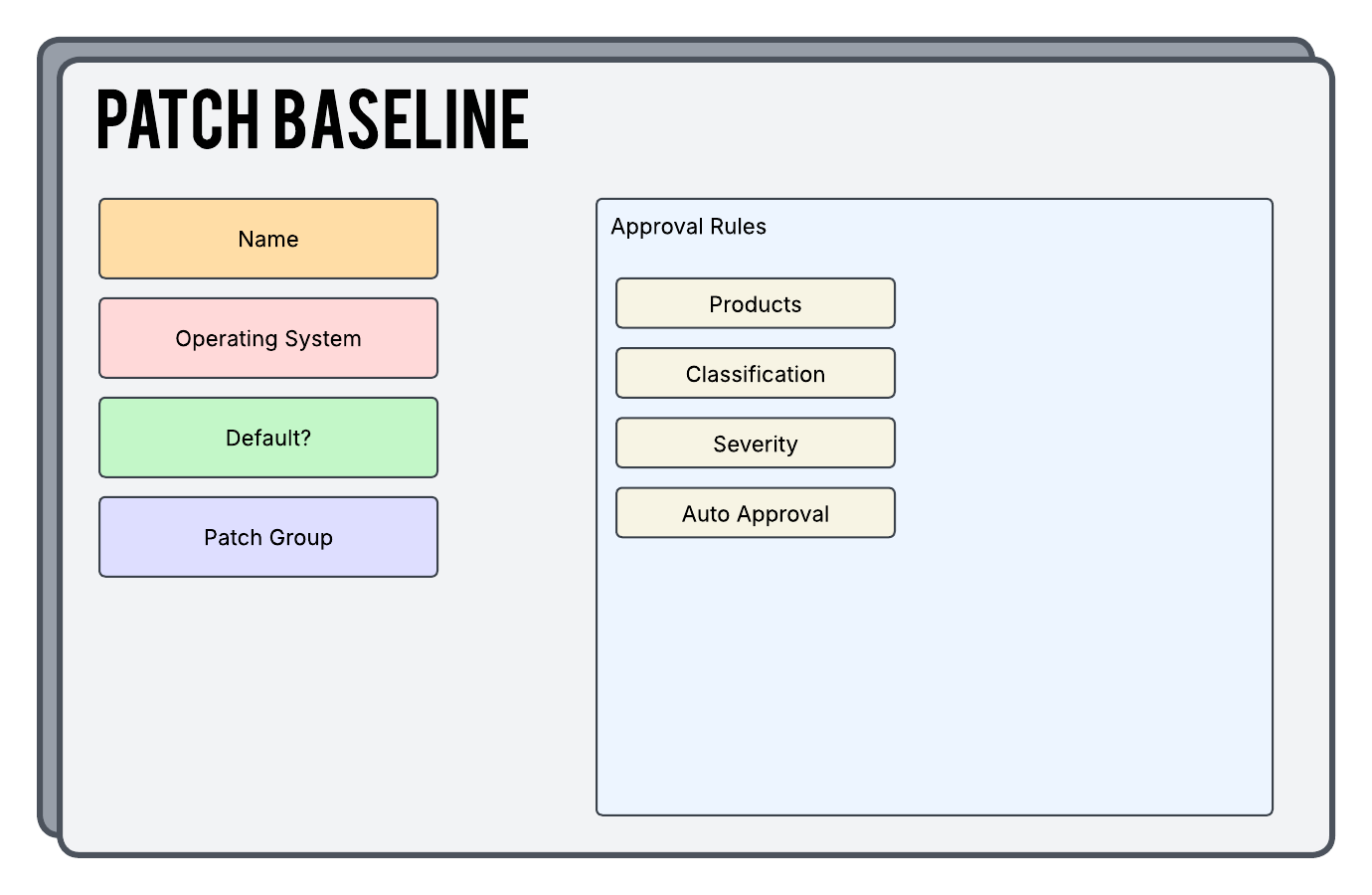
A Patch Baseline is how you will define what patches will be applied to your servers. You can use the rules here to filter against things such as the severity, classification, and even specific products you want to patch. A server can have only one Patch Baseline defined for it at any given time.
Patch Group
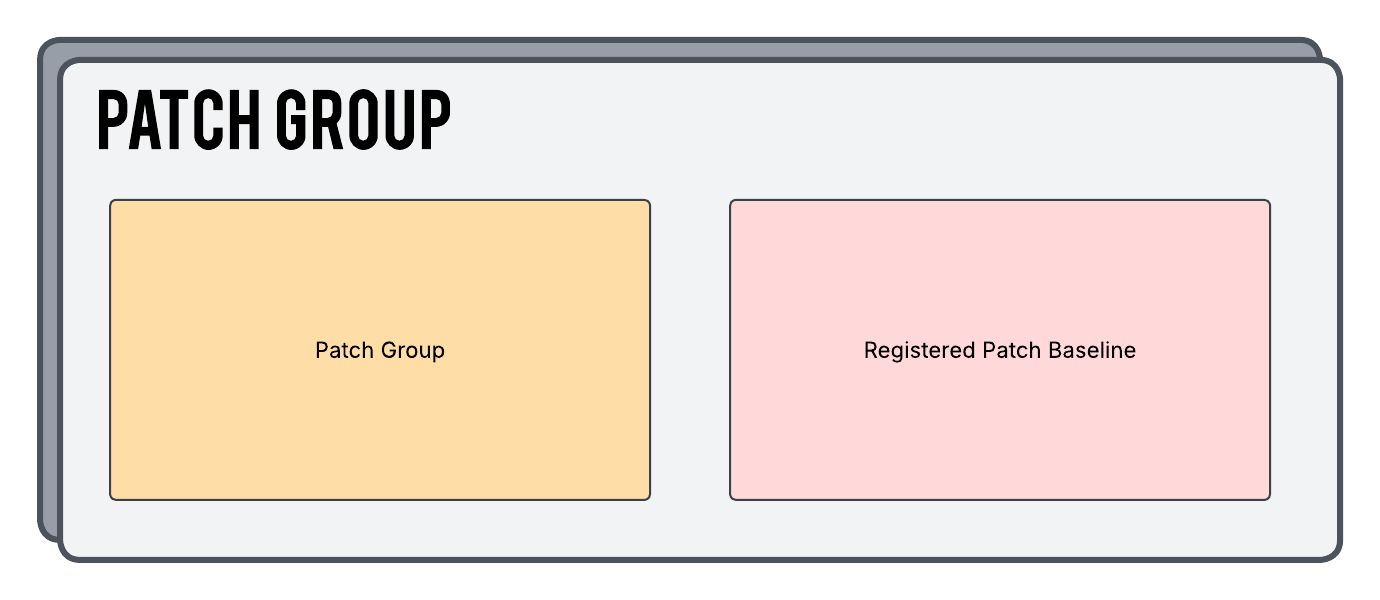
A Patch Group is how you link a server to a particular Patch Baseline. Today we will be setting up our Patch Group to add any servers that have a particular tag applied.
Maintenance Window
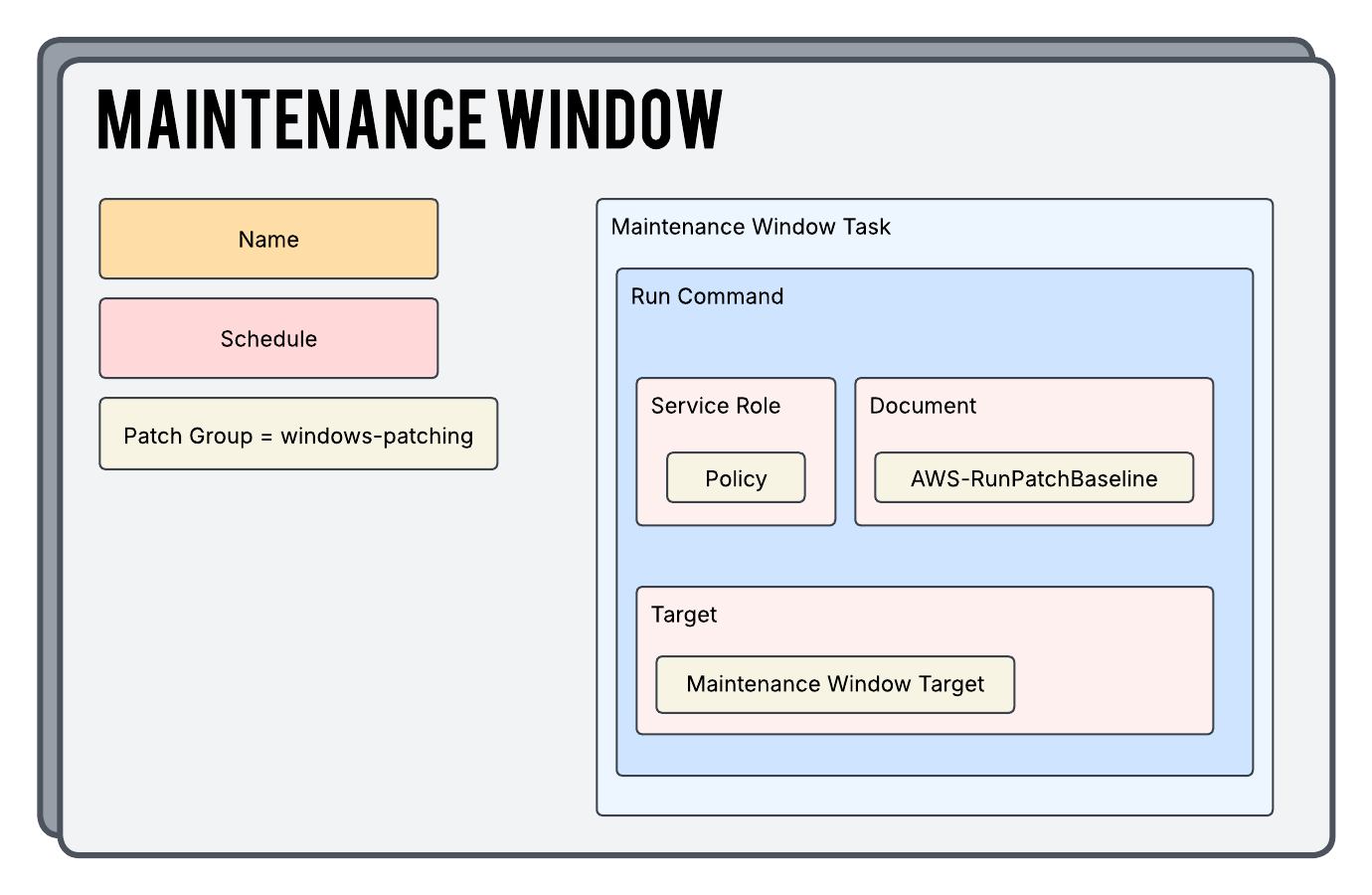
A Maintenance Window is what is going to drive the automation. We use our Maintenance Window to define a time we want to run our patching jobs. This is also where we will specify our task (the specific script we want to run against our servers to initiate patching processes) and our target (our Patch Group). In this particular build, we will actually be creating two separate Maintenance Windows because we will need one for our scanning process and one for our actual patch install process.
IAM Roles And Policies
In order for all of this to work together, we will need the appropriate permissions assigned to our resources through IAM Roles. If these permissions are not properly assigned (using AWS vernacular we are “assuming the role”) the jobs will fail. We have the power to manually build out roles (and the policies that live inside of them) to attach to our resources, and this is typically best practice when it comes to following the Principle of Least Privilege. The other option you have is to use the pre-built AWS Managed Roles and Policies that already exist. Since this is a Patch Manager tutorial and not an IAM tutorial we will be using the second option here to keep things simple.
Here’s what it looks like…
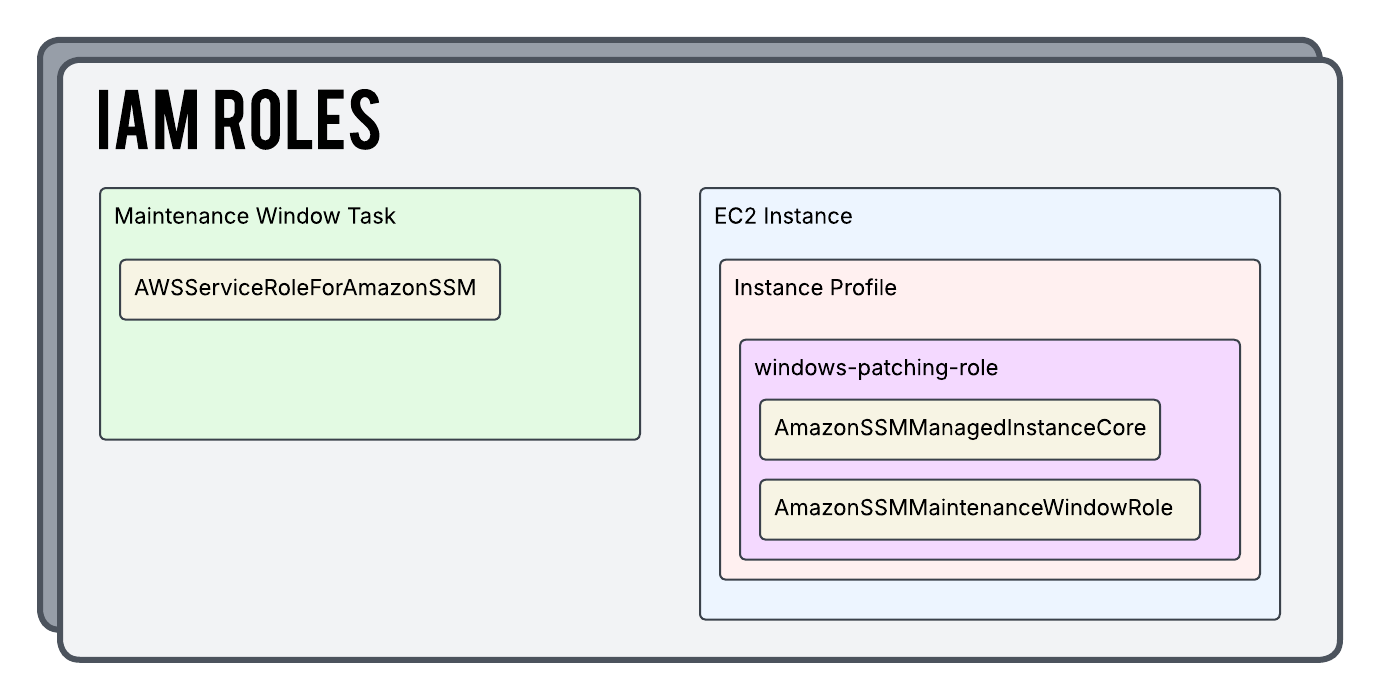
- AWSServiceRoleForAmazonSSM (AWS Managed Role)
- This Role is what gives our Maintenance Window Task all the permissions it needs to do a bunch of things with services like SSM, EC2, and more. This role has a managed policy inside that will define everything it needs to do it’s job.
- windows-patching-role (Custom Role)
- This is attached to our EC2 Instances Instance Profile and holds the two below AWS Managed Policies
- AmazonSSMMaintenanceWindowRole (AWS Managed Policy)
- This AWS managed policy will allow our EC2 instances to properly interact with our Maintenance Windows. We will be attaching it to our custom windows-patching-role IAM Role.
- AmazonSSMManagedInstanceCore (AWS Managed Policy)
- This AWS managed policy is required for AWS Systems Manager core functionality in general and not just in our particular example here. If this isn’t assigned to your EC2 instances you would notice that nothing in SSM would be able to interact with your instance. We will be attaching it to our custom windows-patching-role IAM Role.
- AmazonSSMMaintenanceWindowRole (AWS Managed Policy)
- This is attached to our EC2 Instances Instance Profile and holds the two below AWS Managed Policies
The Flow
Now that we have discussed the individual pieces of our build, let’s look at how this works together to perform patching…
- The Maintenance Window scheduler (cron expression) kicks off the maintenance window.
- The Maintenance Window starts the defined task.
- The task starts the run command (AWS-RunPatchBaseline)
- The AWS-RunPatchBaseline document loads parameters from the task invocation. These include the operation type (Scan or Install) and any overriding parameters that take precedence over the patch baseline settings.
- The command identifies our servers based on the members of our Patch Group.
- The proper Patch Baseline is determined based on our Patch Group.
- The Patching Operation is now performed…
- If the Scan Job is running then it checks for missing patches but does not install them.
- If the Install Job is running then approved patches are installed. If necessary, the instances will be rebooted since we set the RebootIfNecessary argument to true.
- Compliance data is generated and reported back to the Patch Manager service for review.
Apply Terraform Liberally
OK. As mentioned above, we can build all of this out using Patch Policies or even manually if we like. But, we’re in the Cool Kids Club®, so we are going to utilize the power of Infrastructure as Code to do the dirty work for us. You have options when using an IAC solution and in this article we are going to use Terraform. I have the files below with a high level summary of each. You can also clone this from my Github Repo.
providers.tf
We are going to initialize our AWS provider as well as populate our secret key and id so that it knows how to authenticate back to the AWS API.
provider "aws" {
  region  = "us-east-1"
  access_key = "ASDFA9ASDF09JASDF9JADF"
  secret_key = "ASDF09QWEF0ASFASDF092F"
}
terraform.tf
This is where we are going to define some high level configuration around how we want Terraform as a whole to operate.
terraform {
  required_version = ">= 1.0"

  required_providers {
    aws = {
      source  = "hashicorp/aws"
      version = ">= 5.0"
    }
  }
}
baselines.tf
Here we are defining our Patch Baselines. You can use a single baseline for all your machines or it might make more sense to create several baselines for various environments.
resource "aws_ssm_patch_baseline" "windows_baseline" {
  name             = "windows-custom-baseline"
  description      = "Windows Patch Baseline"
  operating_system = "WINDOWS"

  # Approve All Patches Of Any Classification
  approval_rule {
    approve_after_days = 2

    patch_filter {
      key = "CLASSIFICATION"
      values = [
        "CriticalUpdates",
        "SecurityUpdates",
      ]
    }
    patch_filter {
      key = "MSRC_SEVERITY"
      values = [
        "Critical",
        "Important",
        "Moderate",
      ]
    }
    patch_filter {
      key = "PATCH_SET"
      values = [
        "OS",
      ]
    }
  }
}
patch-groups.tf
Here we are defining our Patch Groups and also linking them to a patch baseline. The end result of building out this resource is that now we can simply add a tag to ANY Windows EC2 instance and it will be associated with our Patch Baseline.
resource "aws_ssm_patch_group" "windows_baseline" {
  baseline_id = aws_ssm_patch_baseline.windows_baseline.id
  patch_group = "windows-patching"
}
maintenance-windows.tf
In this file we are defining two Maintenance Windows (one for our patch install job and one for our daily scanning job). We are also defining the sub-components that live “inside” each Maintenance Window which include…
- A Maintenance Window Task
- A Maintenance Window Target
- A Run Command
# Create a Maintenance Window for our monthly install job
resource "aws_ssm_maintenance_window" "windows_install" {
  name        = "windows-patch-install-third-saturday"
  description = "Maintenance Window to install patches on the third Saturday of the month"
  schedule    = "cron(0 0 ? * SAT#3 *)"
  duration    = 8
  cutoff      = 6
}

# Associate an AWS tag as a target for the above Maintenance Window
resource "aws_ssm_maintenance_window_target" "windows_tags_install" {
  description   = "Maintenance Window target for the Windows Patch Install"
  window_id     = aws_ssm_maintenance_window.windows_install.id
  resource_type = "INSTANCE"

  targets {
    key = "tag:Patch Group"
    values = [
      "windows-patching",
    ]
  }
}

# The task we will run inside the above Maintenance Window
resource "aws_ssm_maintenance_window_task" "windows_install" {
  window_id        = aws_ssm_maintenance_window.windows_install.id
  task_type        = "RUN_COMMAND"
  task_arn         = "AWS-RunPatchBaseline"
  priority         = 1
  service_role_arn = data.aws_iam_role.aws_service_role_for_amazon_ssm.arn
  max_concurrency  = "100%"
  max_errors       = "100%"

  targets {
    key = "WindowTargetIds"
    values = [
      aws_ssm_maintenance_window_target.windows_tags_install.id
    ]
  }

  task_invocation_parameters {
    run_command_parameters {
      parameter {
        name   = "Operation"
        values = ["Install"]
      }

      parameter {
        name   = "RebootOption"
        values = ["RebootIfNeeded"]
      }
    }
  }
}

# Create a Maintenance Window for our daily scanning job
resource "aws_ssm_maintenance_window" "windows_scan" {
  name        = "windows-patch-daily-scan"
  description = "Maintenance Window to scan for patches daily"
  schedule    = "cron(0 18 * * ? *)"
  duration    = 2
  cutoff      = 1
}

# Associate an AWS tag as a target for the above Maintenance Window
resource "aws_ssm_maintenance_window_target" "windows_tags_scan" {
  description   = "Maintenance Window target for the Windows Patch Daily scan"
  window_id     = aws_ssm_maintenance_window.windows_scan.id
  resource_type = "INSTANCE"

  targets {
    key = "tag:Patch Group"
    values = [
      "windows-patching",
    ]
  }

}

# The task we will run inside the above Maintenance Window
resource "aws_ssm_maintenance_window_task" "windows_scan" {
  window_id        = aws_ssm_maintenance_window.windows_scan.id
  task_type        = "RUN_COMMAND"
  task_arn         = "AWS-RunPatchBaseline"
  priority         = 1
  service_role_arn = data.aws_iam_role.aws_service_role_for_amazon_ssm.arn
  max_concurrency  = "100%"
  max_errors       = "100%"

  targets {
    key = "WindowTargetIds"
    values = [
      aws_ssm_maintenance_window_target.windows_tags_scan.id
    ]
  }

  task_invocation_parameters {
    run_command_parameters {
      parameter {
        name   = "Operation"
        values = ["Scan"]
      }

      parameter {
        name   = "RebootOption"
        values = ["NoReboot"]
      }
    }
  }
}
data.tf
Here we are doing a data source lookup of the AWSServiceRoleForAmazonSSM role so that it can be referenced in our code and used by our Maintenance Window Tasks. Remember, if this role is not linked to our Maintenance Window Task then it will not have the permission to do any of the things it needs to do.
# The data lookup we are using in our maintenance-windows.tf file
data "aws_iam_role" "aws_service_role_for_amazon_ssm" {
  name = "AWSServiceRoleForAmazonSSM"
}

# The lookup for the AmazonSSMManagedInstanceCore Policy
data "aws_iam_policy" "ssm_managed_core" {
  name = "AmazonSSMManagedInstanceCore"
}

# The lookup for the AmazonSSMMaintenanceWindowRole Policy
data "aws_iam_policy" "ssm_managed_window_role" {
  name = "AmazonSSMMaintenanceWindowRole"
}
iam.tf
In this file we are creating our EC2 Instance Profile and our custom IAM Role. We are linking the two and we are also attaching the two necessary AWS Managed Policies to our IAM Role. Lastly, we are building our assume role policy document which is required for the EC2 service to have permission to use the role.
# Build our Assume Role
data "aws_iam_policy_document" "assume_role" {
  statement {
    effect = "Allow"

    principals {
      type        = "Service"
      identifiers = ["ec2.amazonaws.com"]
    }

    actions = ["sts:AssumeRole"]
  }
}

# Build our Custom Role
resource "aws_iam_role" "windows_patching" {
  name               = "windows-patching-role"
  assume_role_policy = data.aws_iam_policy_document.assume_role.json
}

# Attach our first Managed Policy to our Role
resource "aws_iam_role_policy_attachment" "ssm_managed_core" {
  role       = aws_iam_role.windows_patching.name
  policy_arn = data.aws_iam_policy.ssm_managed_core.arn
}

# Attach our second Managed Policy to our Role
resource "aws_iam_role_policy_attachment" "ssm_managed_window_role" {
  role       = aws_iam_role.windows_patching.name
  policy_arn = data.aws_iam_policy.ssm_managed_window_role.arn
}

# Build our Instance Profile and attach it to our Role
resource "aws_iam_instance_profile" "windows_patching" {
  name = "windows-patching-instance-profile"
  role = aws_iam_role.windows_patching.name
}
EC2 Instance Configuration
Now that we have the AWS Backup resources configured we need to verify our EC2 instances also have what they need. Every instance you need to patch needs to have…
-
our newly created windows-patching-instance-profile Instance Profile attached
-
the proper tag added so that our Maintenance Window can target it
That’s It!!!
Congratulations! If everything went according to plan, and it always does, you now have a fully functional and automated backup solution for your AWS Windows Servers! Who doesn’t have to stay up until 3 AM Friday night manually patching?!?! YOU!!! Who now has a single pane of glass to review compliance and patching history of your servers?!?! IT’S YOU! YOU DO!!!
My goal in writing these articles is primarily to help myself get a deeper understanding of the technologies I use in AWS at my job. If you stumbled across this post I hope you found it helpful.
F.A.Q.
Would an existing WSUS patching process conflict with Patch Manager?
Yes, if you have both of these systems configured and pointed to the same EC2 instance you could run into problems such as…
- conflicting patch sources
- duplicate patching
- unexpected restarts outside of designated Maintenance Windows
- Group Policy interfering with Patch Manager operations
How would the architecture differ from this article if you employed the use of Patch Policies?
Some of the architectural differences include…
- Patch Policies do not use Patch Group tags and instead target nodes directly in the policy itself via OU memberships or instance IDs directly
- Patch Policies integrate their task scheduling directly into the policy itself and can use a single configuration for both the scanning and installation schedules whereas the traditional method requires two separate Maintenance Windows
Patching jobs aren't working successfully after setup. What should I check?
- Make sure that the appropriate IAM roles are assigned to your resources both on the Patch Manager side and also on your EC2 instances
- Verify that the SSM agent is successfully installed on your EC2 instances and is properly communicating back with AWS

Start the conversation